Game developers
Use a prompt to explore enemy silhouettes, props, or environment pieces before committing to a modeling pass.
For a more controlled pipeline, the low poly 3d model generator route focuses on simpler forms and cleaner iteration.
Prompt to asset
Describe the object, character, or scene you need and let Tripo create a starting asset. Text to 3D model generation is useful for blocking out ideas before detailed modeling and cleanup.

See the shift
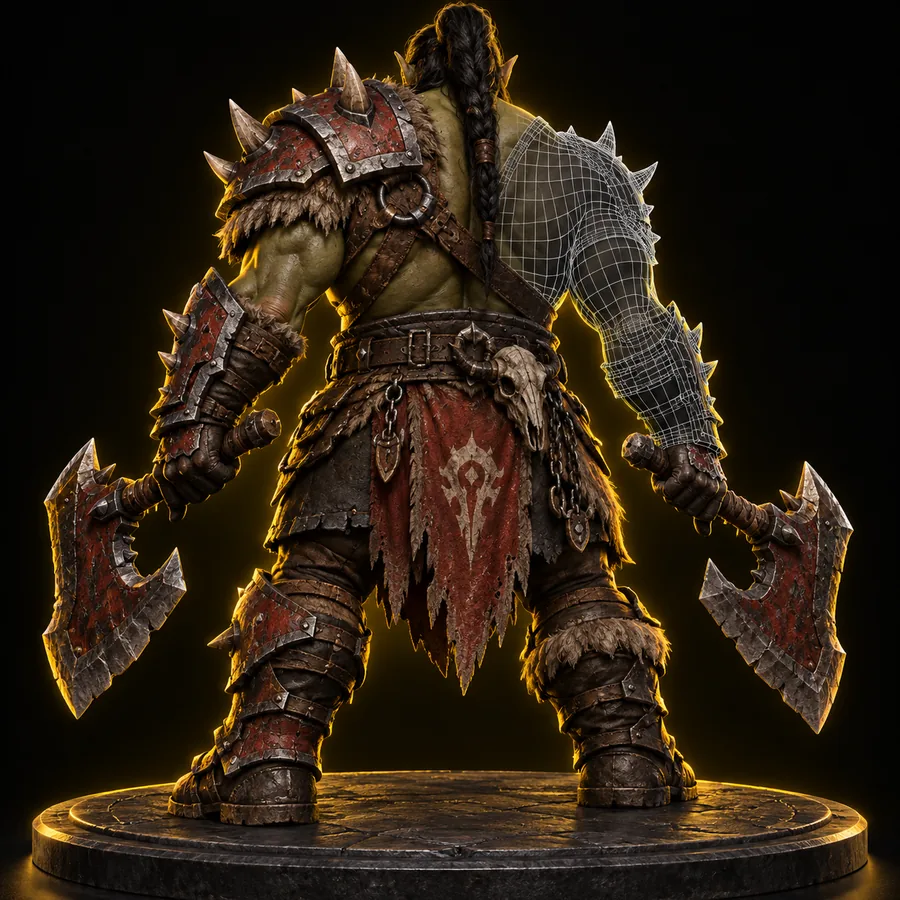
A prompt supplies intent and visual language; the generated mesh supplies surfaces, volume, and a starting topology. The comparison is useful because a plausible render is not automatically production-ready.


Prompt concept
Drag the divider to compare the concept and the model.
Generated mesh
Structure check
Text and mesh are different kinds of inputs. This table shows where a prompt is strong and where the resulting model still needs inspection.
| Text prompt | 3D model output | |
|---|---|---|
| Primary role | Communicates intent, style, and subject | Provides editable geometry and surfaces |
| Shape detail | Describes desired features in words | Encodes those features as vertices, faces, and forms |
| Topology | Cannot guarantee edge flow | Needs inspection for density, poles, and deformation |
| Materials | Suggests color, finish, or texture | May include assigned materials or require cleanup |
| Scale | Usually implied by context | Must be checked against the destination scene |
| Editing | Fast to revise by changing wording | Requires mesh tools for precise changes |
| Best use | Ideation and visual direction | Blocking, iteration, and downstream production |
Who benefits
A generated mesh can accelerate the first pass, but every audience should verify the result against its own constraints.
Use a prompt to explore enemy silhouettes, props, or environment pieces before committing to a modeling pass.
For a more controlled pipeline, the low poly 3d model generator route focuses on simpler forms and cleaner iteration.
Describe a chair, sneaker, appliance, or vehicle to create a rough visual that can guide discussion and review.
When a reference image already exists, the image to 3d model workflow can preserve visual cues that text may omit.
Use prompt outputs as blockouts, then inspect proportions, topology, materials, and segmentation before handoff.
Tripo segmentation can help separate a complex result into more manageable editable parts for downstream work.
Prompt examples
These examples show how a short description can establish a direction while leaving proportion, topology, and production details open to review.
 Character
 Vehicle
 Robot
Robot
Related workflows
Choose the input that gives you the strongest information for the asset you are trying to make.
Simple workflow
Treat the first result as a reviewable starting point. A quick inspection catches the issues that prompt wording alone cannot prevent.
Name the object, viewpoint, style, major parts, and material cues. Keep the description concrete instead of combining unrelated ideas.
Check the overall proportions, negative spaces, symmetry, and recognizable features from several angles before refining details.
Look for holes, floating parts, awkward intersections, uneven density, missing materials, and geometry that will not deform or export cleanly.
Adjust scale, orientation, part separation, materials, and polygon density for the game engine, render, prototype, or design review ahead.
Start creating
Use a focused description to generate a visual starting point, then judge the asset by its silhouette, geometry, and intended destination. The fastest workflow is iterative: prompt, inspect, refine, and export only after the result meets your needs.
Variant FAQ
Answers to the practical questions that come up when choosing prompt-based 3D generation.
It can create a starting 3D asset from a written description of an object, character, prop, or stylized concept. The result is best treated as an editable starting point rather than a guarantee of final production geometry.
Describe the subject first, then add its key parts, proportions, material cues, pose, and visual style. Specific language usually gives you a more useful direction than a long prompt filled with conflicting details.
Not necessarily. A generated result can contain uneven density, intersections, holes, or edge flow that is unsuitable for deformation, simulation, or close-up production work, so inspect and clean it before handoff.
You can use it as a concept, blockout, or iteration aid when it fits your project requirements. Check scale, polygon density, materials, UVs, part separation, and licensing or team guidelines before shipping it in a final build or commercial deliverable.